PDF Manager - Quick Start
The PDF Manager is designed to rename large batches of PDF files in seconds while maintaining consistent formatting and eliminating manual errors.
Whether you’re preparing cue sheets, reports, or any other bulk documents, the workflow is simple, fast, and flexible.
Example Workflow
🚀 Typical Workflow
1. Upload your files
- Drag-and-drop one or more PDF files directly into the tool, or click Browse to select from your computer.
- Soft limit: 200 files per batch.
Need to process more than 200? Use multiple batches or contact support using the links in TūlBOX’s footer.
💡 Tip: PDFs can be uploaded in any order — the tool sorts and processes them automatically.
2. Review & edit
- Uploaded files appear in a table view with columns for the original and previewed filenames.
- To rename a single file:
- Click the ✏️ edit icon next to its name.
- Make your changes directly in place.
- Press Enter or click away to save.
- All edits are applied immediately to the preview but do not overwrite the original until download.
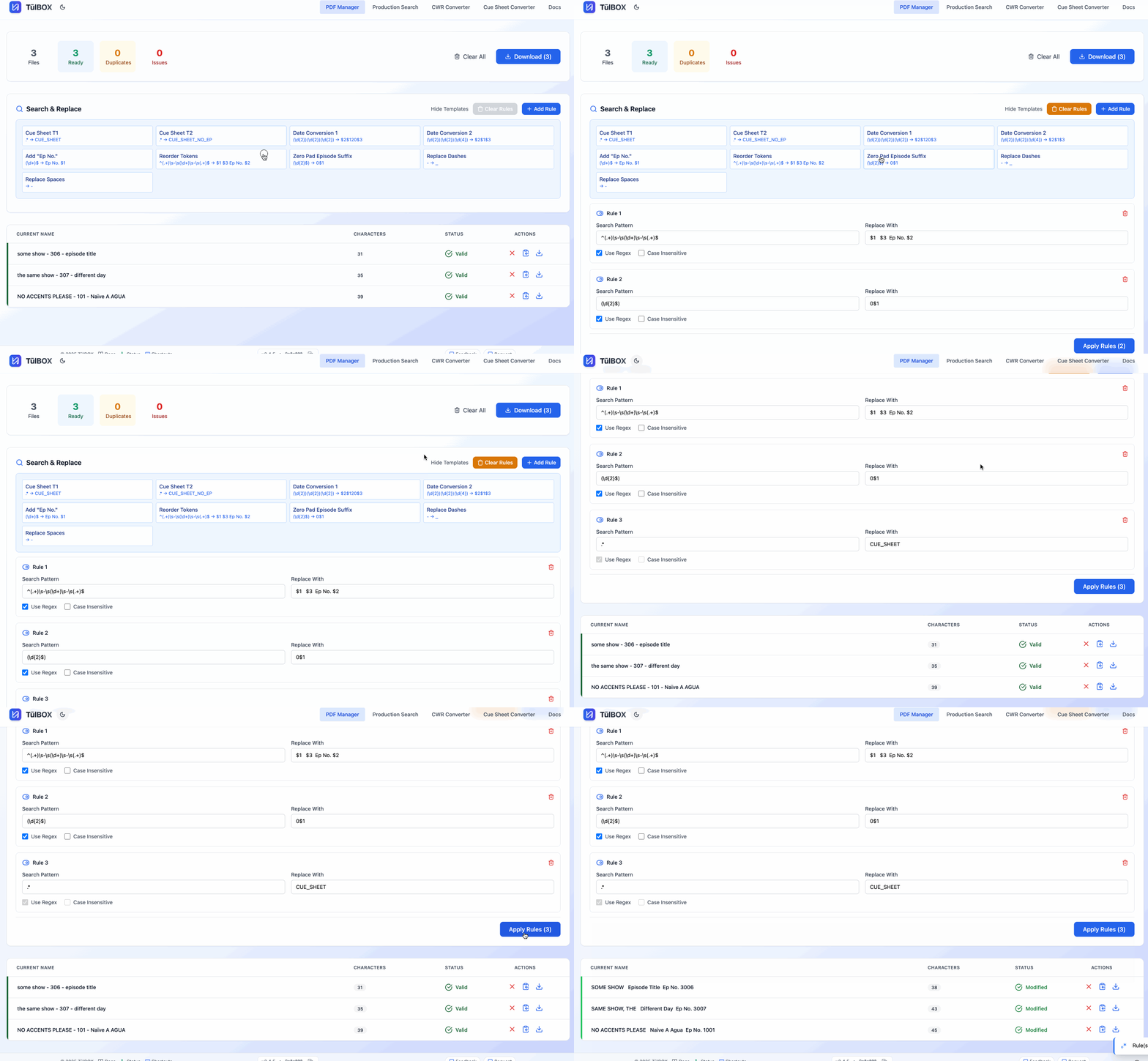
3. Batch-rename with Search & Replace
- Add a Search & Replace rule to define one or more rename rules.
- Rules support full Regular Expression syntax, allowing advanced matching and replacements.
- You can stack multiple rules — they run in order from top to bottom.
- Click Apply Rules to preview changes instantly for every file.
💡 Power Tip: Save time by using Quick Templates inside Search & Replace for common naming patterns (e.g., cue-sheet formats, date reformatting, or spacing fixes).
4. Check file status
Each file shows a status pill in the table.
Possible statuses:
| Status | Meaning |
|---|---|
| Valid | Name meets all current rules and formatting requirements. |
| Modified | Name has been manually or automatically updated. |
| Dotified | Name contains . . . formatting applied via a template or rule. |
| Invalid | Name fails length, character, or formatting checks. |
| Duplicate | Another file in the batch has the same name. |
See the full Status Indicators guide for details.
5. Download renamed files
- Once all files show a green or blue status (Valid, Modfied, Dotified), click Download All.
- The tool bundles all renamed files into a single
.ziparchive. - Original files remain untouched on your computer.
- You can also choose to download individual files.
6. Clear the workspace
- Click Clear All to remove every file from the table and start fresh.
💡 Additional Tips & Tricks
- Hotkeys! Use the shortcut keys for even faster workflows.
- Mixed formats? Use separate Search & Replace runs for different file types or naming patterns before downloading.
- Need precision? Combine manual edits and batch rules — they work together.